What this software is for
SpeakRadio Sync installs on the studio computer. It checks your account at regular intervals and drops new features into the local folder of your choice — the one your automation system watches. No daily handling is required.
Good to know :
Two complementary approaches: SFTP pushes files from SpeakRadio to your server; SpeakRadio Sync pulls them from your studio. Pick whichever suits your setup.
Installation
- Windows: download the installer from Broadcasting › Sync software and run it.
- macOS: download the disk image and drag the application into the Applications folder.
Tip :
Install the software on the machine that runs your automation system, not on your laptop: synchronisation only runs while that machine is switched on.
The sync key
On the Sync software page you will find the API address (copiable in one click) and the status of your key. Click Generate a key to create one.
Warning :
The key is displayed only once: copy it immediately. If you lose it, generate a new one — the old key then stops working and the software will have to be reconfigured.
Configuring the software
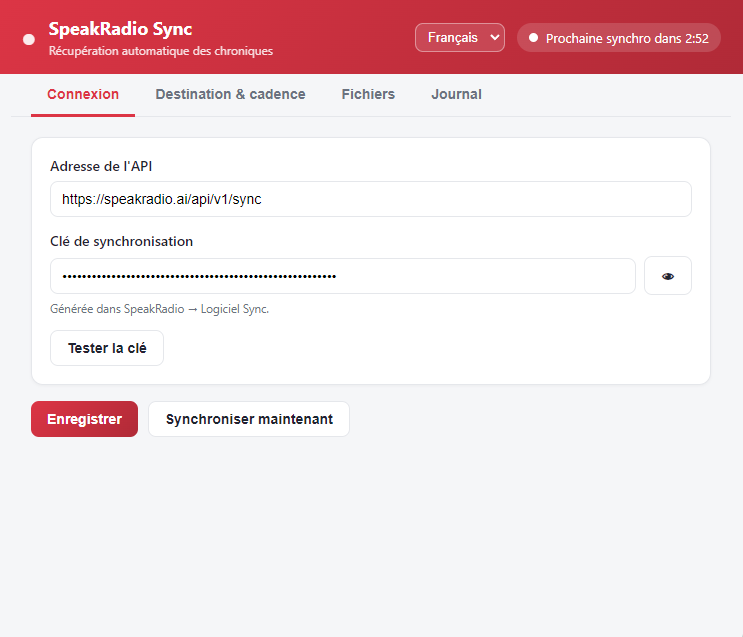
Connection tab:
- Paste the API address.
- Paste your sync key.
- Click the test button: the software confirms the connection to your account.
Destination and frequency
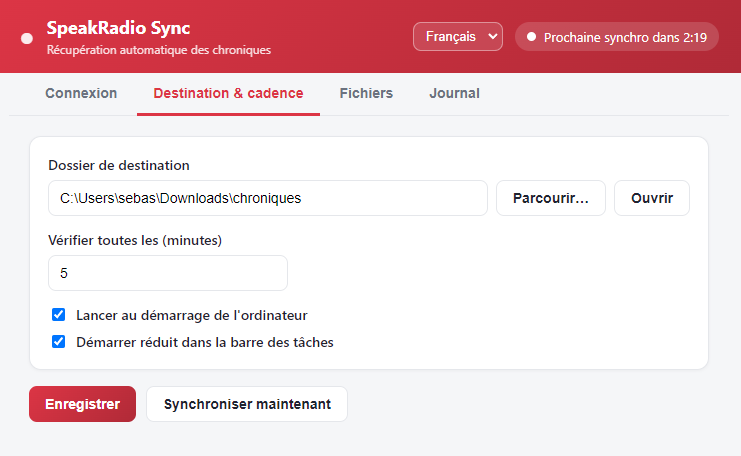
- Choose the destination folder on the studio disk.
- Set the check frequency (every X minutes).
- Save: the software starts watching your account.
Day-to-day operation
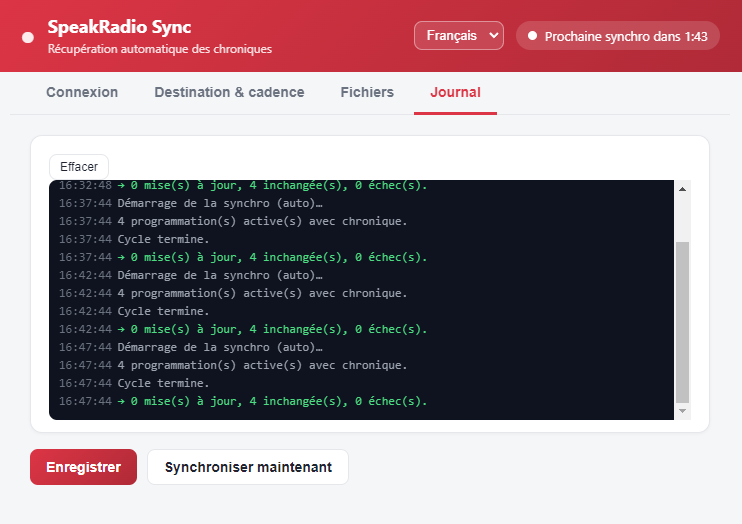
Once configured, the software runs in the background. The Log tab records every check and every download: it is the first place to look if a file is missing.
Tip :
Let the software start automatically with the Windows session so you never miss a feature after a reboot.
The files you receive
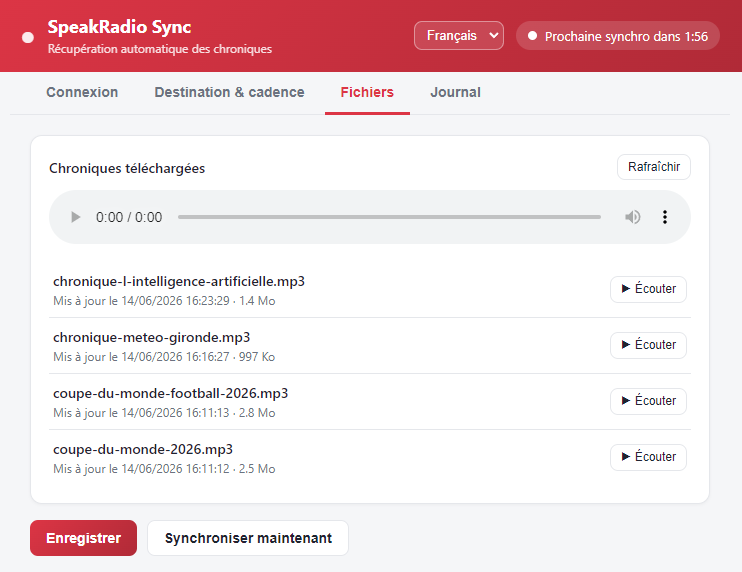
The Files tab lists everything that has been downloaded, with the date and the name of the file written to disk. That way you can check at a glance that your automation system really does have today's feature.